OxRefine
OxRefine is a free, open-source tool for cleaning messy tabular data, built on OpenRefine's way of working: facet, filter, cluster near-duplicates, transform with GREL, reconcile against Wikidata, and undo anything. The engine is new and written in Rust. It is about 20 times faster than OpenRefine 3.10.1 and uses 12–22 times less memory, with the same results.
Who it's for
- OpenRefine users whose tables have grown past what OpenRefine handles comfortably. Your recipes run unchanged, and your projects open with their history.
- Anyone with messy spreadsheets: inconsistent spellings, stray spaces, duplicates, mixed date formats, or values to match against a reference such as Wikidata.
- Teams and servers: run it as a desktop app, in a browser, on a server behind an access token, or headless in scripts.
Where to start
- New to both tools? Start with Install and A first cleanup.
- Coming from OpenRefine? Read Where everything is and Moving projects and recipes.
- Looking up a function? See the GREL reference.
How close to OpenRefine is it?
Every area is checked against fixtures produced by running the same cases through a real OpenRefine 3.10.1, and 2,018 of the 2,034 checks match. The remaining differences are listed, each with its reason, in Differences and what's missing.
Install
Desktop app
Download the installer for your system from the latest release:
| System | File |
|---|---|
| Windows | OxRefine_<version>_x64-setup.exe installs for your user only and needs no administrator rights; there is also an .msi |
| macOS | OxRefine_<version>_universal.dmg, for both Apple silicon and Intel |
| Linux | OxRefine_<version>_amd64.AppImage runs anywhere; there are also .deb and .rpm packages |
The installers aren't code-signed yet, so your system may warn you the first time:
- Windows shows a SmartScreen notice. Choose More info → Run anyway.
- macOS says the app is from an unidentified developer. Right-click the app, choose Open, then confirm.
- Linux AppImage: make the file executable with
chmod +x, then run it.
Updates
When the app starts, it checks for a newer release. If one exists, it offers to install it and restarts when that's done. Updates are signed, and the app refuses any update that isn't.
Where projects are kept
Projects are saved in a folder in your user profile, so they survive restarts and updates:
- Windows:
%APPDATA%\OxRefine\projects - macOS:
~/Library/Application Support/OxRefine/projects - Linux:
~/.local/share/oxrefine/projects(or under$XDG_DATA_HOME)
Set the OXREFINE_HOME environment variable to keep them somewhere else.
Command line
The release also has an ox archive for each system. It contains a single program:
ox applyreplays an OpenRefine or OxRefine recipe on a file, with no window;ox serveruns the full app in your browser, like OpenRefine does.
Docker
git clone https://github.com/ilyaux/OxRefine.git && cd OxRefine
docker build -t oxrefine .
docker run -p 3030:3030 -v oxrefine-data:/data oxrefine
The log prints a link that includes an access token; open it in a browser. Projects are saved in the oxrefine-data volume.
From source
You need Rust (stable) and Node.js 22.
git clone https://github.com/ilyaux/OxRefine.git && cd OxRefine

# desktop app
cd ui && npm install && npm run tauri dev

# or in a browser: build the UI once, then `ox serve` has it built in
cd ui && npm install && npm run build && cd ..
cargo run --release -p ox-cli -- serve      # http://127.0.0.1:3030/
A first cleanup
A ten-minute walk through the usual loop: import, look at the problems with facets, fix them, check the result and export it.
1. Import
On the home screen, choose From a file or folder and pick a CSV, Excel, ODS, JSON or XML file. You can also paste data, give a web address, or pick a zip file or folder of files. A preview shows how the data will be read. Adjust the options if a column looks wrong (separator, header rows, encoding), then create the project.
2. Find the mess with facets
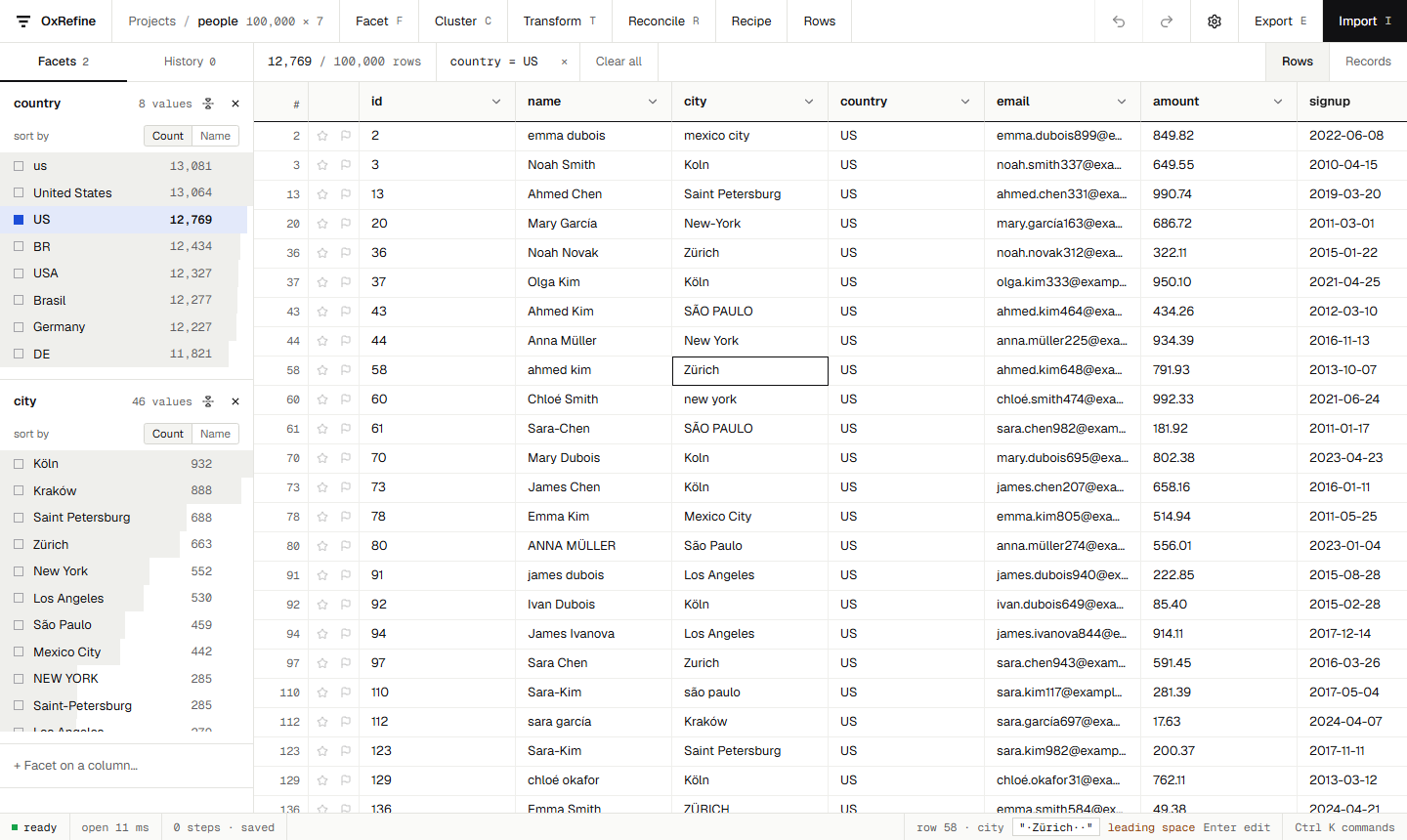
Each column header already gives a first look: the column's main type, how many distinct and empty values it has (or, for numbers and dates, its range), and a small chart. Text columns show their most common values as a bar; numbers and dates show a histogram; a hatched strip means nearly every value is different. Values a facet selects turn blue in the bar.
Open a column's menu (the arrow next to its name) and choose Text facet. The facet lists every distinct value with how many rows have it. Inconsistencies show up at once, such as US, us, USA and United States. Click a value to show only its rows; click more values to add them.
For numbers and dates, use Numeric facet or Timeline facet: drag the range to filter. Text filter finds rows by part of their text.
3. Fix values
- Edit a value everywhere at once: in a text facet, hover a choice and click the pencil. Every row with that value changes.
- Common fixes: use Edit cells → Common transforms, for example to trim whitespace, collapse spaces, change case or convert to numbers or dates.
- Anything else: use Edit cells → Transform… with a GREL expression, such as
value.replace("-", " ").toTitlecase(). The preview shows the result for the first rows before you apply it.
4. Merge near-duplicates
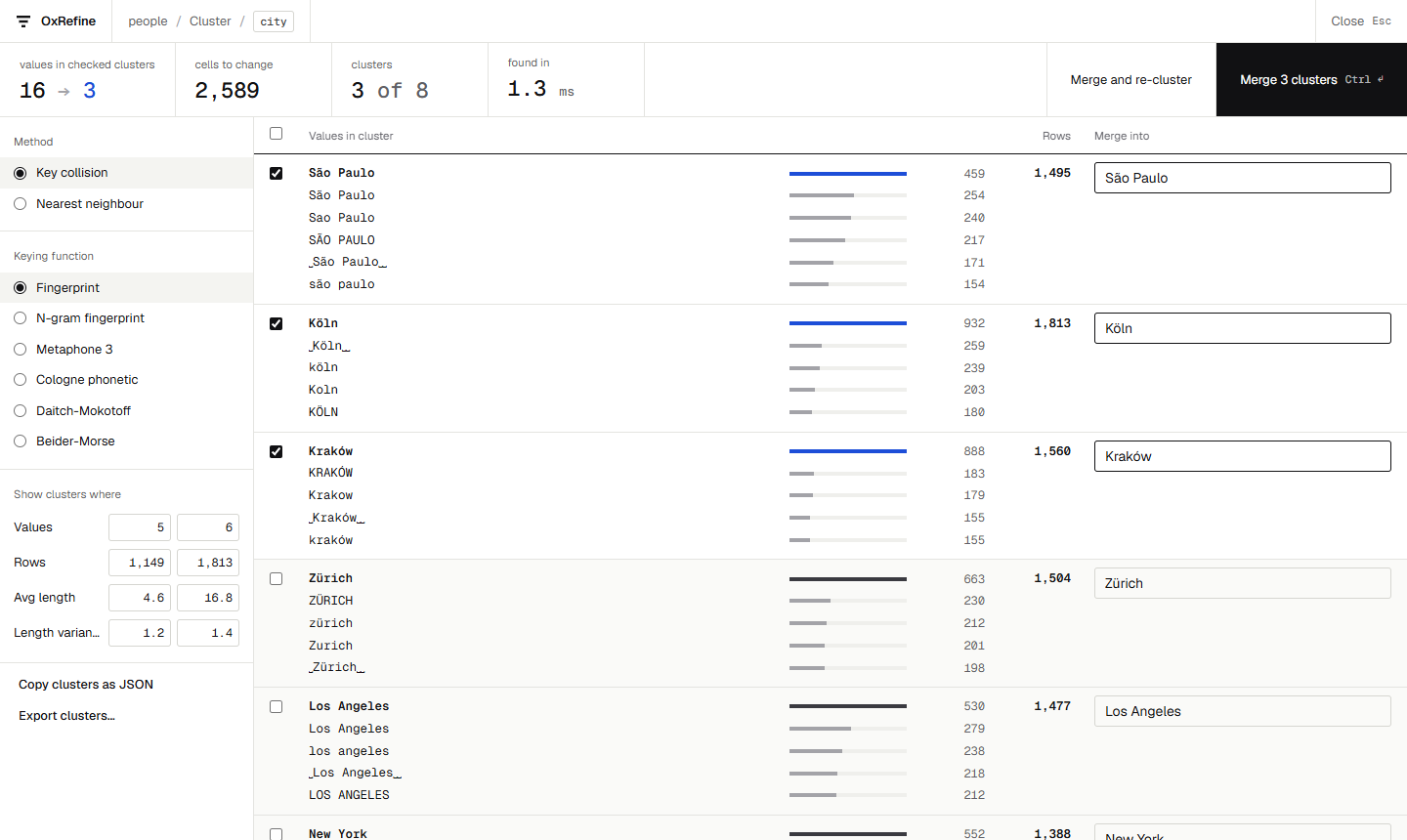
Edit cells → Cluster and edit… groups spellings that probably mean the same thing, such as São Paulo, Sao Paulo and SÃO PAULO. Tick the clusters to merge, adjust the new value, and choose Merge. Try other methods and keying functions to find more. See Clustering.
5. Check, undo, repeat
Every step is listed in the History tab. Click an earlier step to go back to it; your later steps stay available until you make a new change. Facets update as you go, so you can see what is left to fix.
6. Export, or save the recipe
- Export writes the cleaned rows as CSV, TSV, Excel, OpenDocument, HTML, SQL or your own template. Only the rows that pass your facets are exported.
- Recipe in the top bar shows every step beside its recipe; tick the steps and save the JSON. It is the same JSON as OpenRefine's Extract. Apply it to next month's file with Recipe → Apply a recipe…, or from the command line with
ox apply.
Where everything is
OxRefine follows OpenRefine's layout: projects on a home screen, a grid of rows, facets and history in a side panel, and each column's operations in its menu. This page lists where each OpenRefine feature lives in OxRefine. Ctrl+K (⌘K on a Mac) opens a command palette that finds any action by name. The tools also have keys, shown next to them: F facet, C cluster, T transform and R reconcile on the column you last used, E export, I or Ctrl O import, Esc to close a view.
Projects
| OpenRefine | OxRefine |
|---|---|
| Create project → This computer | From a file or folder on the home screen, or Import → File… in a project |
| Create project → Web addresses (URLs) | From a web address on the home screen, or Import → Web address… |
| Create project → Clipboard | Paste from clipboard on the home screen, or Import → Paste data… |
| Create project → Database | Not yet |
| Open project | Home screen, the project list |
Import project (.openrefine.tar.gz) | Open an OpenRefine project on the home screen, or Import → OpenRefine project…; it opens with its undo history |
| Export → OpenRefine project archive | Export → OpenRefine project; OpenRefine opens it with OxRefine's history |
| Rename and delete projects | Home screen, the project's buttons |
| Project tags and metadata | About next to the project in the list: tags, description, creator and the rest; click a tag at the top to show only its projects. OpenRefine project archives carry them both ways |
| Preferences | The gear at the top right: theme, the facet choice limit, reconciliation services, recent expressions, and every preference by name and value |
Rows and records
| OpenRefine | OxRefine |
|---|---|
| Show as rows / records | Rows / Records at the right of the bar above the grid |
| Star and flag a row | The star and flag in each row |
| All → Edit rows → Star / Flag / Remove matching rows | Rows in the top bar |
| Keep only matching rows | Rows → Keep only matching rows |
| Sort | Sort rows by this column… in the column menu |
| Remove duplicate rows | Remove duplicate rows by this column in the column menu |
Facets and filters
| OpenRefine | OxRefine (column menu → Filter) |
|---|---|
| Facet → Text facet / Numeric facet / Timeline facet | Same names |
| Facet → Custom text facet… / Custom numeric facet… | Same names |
| Facet → Customized facets → word, duplicates, text length, Unicode, blank, error, star, flag | Customized facets, same entries |
| Facet → Scatterplot facet | Not yet |
| Text filter | Text filter |
| Reconcile → Facets | Reconcile → Facets |
In a list facet, click a choice to include it, and hover a choice and click the pencil to change that value in every row. Each filter shows as a chip above the grid; Clear all there clears every filter, and the × on a facet removes it.
Editing cells
| OpenRefine (column menu → Edit cells) | OxRefine (column menu → Edit cells) |
|---|---|
| Transform… | Transform…: GREL with a live preview and expression history |
| Common transforms | Common transforms: trim, collapse whitespace, case, to number, date, text or blank |
| Fill down / Blank down | Same names |
| Split multi-valued cells… / Join multi-valued cells… | Same names |
| Cluster and edit… | Cluster and edit… |
| Edit one cell | Click the cell and press Enter (or double-click it, or use the pencil); it can also change every identical cell |
Editing columns
| OpenRefine (column menu → Edit column) | OxRefine (column menu → Edit column) |
|---|---|
| Split into several columns… | Same name |
| Add column based on this column… | Add column based on this… |
| Add column by fetching URLs… | Same name |
| Add columns from reconciled values… | Same name |
| Rename / Remove / Move this column | Rename…, Remove column, Move column |
| Transpose → Cells across columns into rows / Cells in rows into columns / Columnize by key/value columns | Transpose, same three entries |
Reconciliation
| OpenRefine | OxRefine |
|---|---|
| Reconcile → Start reconciling… | Reconcile → Start reconciling…: services, type guessing, columns as properties |
| Reconcile → Actions (match to best candidate, create new items, match all filtered cells, discard, clear, copy across columns, use values as identifiers, add entity identifiers column) | Reconcile → Actions, same entries |
| Judging a cell: candidates, match this cell or all identical cells, new item, search for match | Click the mark after a reconciled cell |
| Add columns from reconciled values… | Column menu → Edit column |
History and recipes
| OpenRefine | OxRefine |
|---|---|
| Undo / Redo tab | History tab in the side panel, undo and redo in the top bar, and Recipe for the full history beside its recipe |
| Undo / Redo → Extract… | Recipe in the top bar: tick the steps, then copy or save the JSON; also History → Extract… |
| Undo / Redo → Apply… | Recipe → Apply a recipe… |
Export
| OpenRefine (Export) | OxRefine (Export) |
|---|---|
| Tab-separated / Comma-separated values | TSV… / CSV… |
| HTML table / Excel (.xlsx) / ODF spreadsheet | HTML table… / Excel (.xlsx)… / OpenDocument (.ods)… |
| Excel 97 (.xls) | Export → Excel 97 |
| Custom tabular / SQL / Templating | Custom tabular… / SQL… / Templating… |
| Export project | OpenRefine project… |
Expressions
| OpenRefine | OxRefine |
|---|---|
| GREL | GREL, every function except wikibaseIssues; see the reference |
| Python / Jython, Clojure | Not yet |
| Expression history and starred expressions | History of recent expressions in the editor |
Server and API
| OpenRefine | OxRefine |
|---|---|
refine -i 0.0.0.0 | ox serve --host 0.0.0.0, behind an access token |
HTTP API (/command/core/...) | OxRefine's own JSON API; OpenRefine's API is not implemented yet |
| Batch use through the API or client libraries | ox apply recipe.json input -o output |
Moving projects and recipes
You don't have to choose between the two tools. Recipes and whole projects move between OpenRefine and OxRefine in both directions.
Projects
From OpenRefine to OxRefine
- In OpenRefine, open the project and choose Export → OpenRefine project archive to file. You get a
.openrefine.tar.gzfile. - In OxRefine, choose Open an OpenRefine project on the home screen (or Import → OpenRefine project… in a project) and pick that file.
The project opens with its data, stars, flags, reconciliation data and its undo history: every step can be undone and redone as it could in OpenRefine. OxRefine rebuilds each step from OpenRefine's own change records, then checks that redoing the step gives OpenRefine's result.
A step that OxRefine can't redo, such as an operation from an extension it doesn't support yet, is merged into the starting data together with everything before it. You then see the data exactly as OpenRefine had it; only that part of the history can't be undone. OxRefine tells you when this happens and why.
Projects with additional extension data
When an archive contains data OxRefine cannot interpret, such as a Wikibase schema, unknown overlay models or extra files, OxRefine keeps an untouched copy of the entire source archive with the saved project. This also preserves unsupported history and survives an app restart. A warning stays visible while the project is open.
If its table, history and project metadata remain unchanged, Export → OpenRefine project returns that original archive. After changes, this export is refused before touching the destination file: unknown extension data may refer to rows or columns that have changed. You can still export the edited table as CSV or Excel, and use Export preserved original in the warning bar to retrieve the untouched archive separately. That original does not include changes made in OxRefine.
This preserves data; it does not run the extension or make its schemas editable. Missing or damaged preserved archives cause an error instead of being silently discarded.
From OxRefine to OpenRefine
Choose Export → OpenRefine project and import the file in OpenRefine with Import project. OpenRefine opens it with OxRefine's full history, and each step can be undone there.
Every archive in OxRefine's test suite is checked this way in a real OpenRefine 3.10.1, with every undo step compared.
Recipes
A recipe is the list of operations OpenRefine shows under Undo / Redo → Extract, as JSON. OxRefine reads and writes the same JSON, including the facets each step was limited to.
-
Use an OpenRefine recipe in OxRefine: choose Recipe → Apply a recipe… and paste the JSON or pick a file.
-
Save an OxRefine recipe: choose Recipe in the top bar, tick the steps to keep, and copy or save the JSON. OpenRefine's Apply… accepts it.
-
Run a recipe without opening the app:
ox apply recipe.json input.csv -o cleaned.csvThe input and the output can also be OpenRefine project archives.
Reusing a recipe on another file
A recipe refers to columns by name and can depend on their types, record boundaries and external services. Try it on a copy of the new input before relying on it in a pipeline. A missing column or unsupported expression language is an error; an expression's cell errors follow that operation's On error setting.
OxRefine validates the operation list before starting. If a supported operation fails while running, the earlier completed steps remain in the project's history. In the browser and desktop app those steps are saved, and the view refreshes to show them; undo them in History if needed. This is also true when a recipe is cancelled between steps. The error identifies the failing step and reports the earlier steps left applied. A recipe is not a transaction that rolls the whole table back.
OpenRefine checks some dependencies earlier: the reference rejects recipes with missing columns or unknown functions before applying any steps. OxRefine currently resolves these at each step, so a reused recipe can leave a partial result. See the tested difference.
ox apply exits with a failure status and does not write the output when a step fails. Its partially transformed table exists only in that process. An existing output file is left untouched.
What travels in a recipe
As in OpenRefine, a recipe contains the operations that act on the whole column or table: transforms, mass edits, splits, reconciliation and so on. Single-cell edits and starring or flagging one row are recorded in the history, but are not part of a recipe.
Steps that call a web service, such as fetching URLs, reconciling, or adding columns from a reconciliation service, contact the service again when a recipe is applied to new data, as they do in OpenRefine. Within a project, OxRefine keeps what the service answered, so undoing and redoing never asks again.
Differences and what's missing
Known differences
OxRefine is tested against fixtures produced by a real OpenRefine 3.10.1 (see How compatibility is checked). Of the 2,136 checks, 12 differ. Each is listed below with its reason. Some are deliberate, because OpenRefine's behaviour there looks like a bug.
| Area | What differs | Why |
|---|---|---|
| Sorting | With blanks sorted first, OpenRefine places one non-blank row before the blank rows | Looks like a comparator bug in OpenRefine; OxRefine puts all blanks first |
| SQL export | OpenRefine drops numeric and null values from INSERT rows, which shifts the columns | Deliberate: OxRefine writes NULL and unquoted numbers, so the dump loads |
| ODS import | OpenRefine adds an empty row for the filler row LibreOffice writes at the end of a sheet (2 cases) | Deliberate: OxRefine leaves it out |
| JSON import | OpenRefine can't read integers beyond 64 bits and creates no project | Deliberate: OxRefine imports them as numbers |
| Beider-Morse keys | Names with more than 20 phonetic alternatives can get a different key (7 cases) | Apache Commons Codec truncates its list while building it, and keeps a different 20 |
The other cases in that fixture total match. They cover GREL results and errors, operations, facet counts, import options, exports, clustering, reconciliation, and project archives with their full history.
Recipe validation and partial failures
The additional recipe-reuse tests expose a separate difference: OpenRefine 3.10.1 validates missing column references and unknown expression functions before running the batch. OxRefine validates the JSON operation list first, then resolves columns and expressions as each operation runs. In the tested two-step recipes, OpenRefine applies no steps, while OxRefine keeps and saves the successful first step before reporting the second step's error. The error reports how many steps remain applied; undo them to revert the partial result. These scenarios are outside the 2,136-check total above.
Fixed-width character positions
Fixed-width import and its ruler count Unicode code points. OpenRefine 3.10.1 counts Java UTF-16 code units. In the additional wizard-reference tests, padding after an emoji produces widths [3, 4, 1] in OpenRefine and [2, 4, 1] in OxRefine. ASCII and basic multilingual plane examples match. This difference is recorded separately in tests/import/fixed-width-guesses.json, outside the 2,136-check total above. Check the import preview before sharing widths for text containing supplementary characters.
JSON Lines limits and export encoding errors
Additional JSON Lines reference cases show that OpenRefine 3.10.1 can import more sequential root values than its requested record limit. OxRefine applies a global record limit and stops reading once it is reached. Its limited preview therefore does not validate malformed data after that point; a full import still reports it. The reference outputs and declared differences are recorded separately in tests/import/json-paths-fixtures.json.
For legacy text export encodings, OpenRefine replaces unrepresentable characters with ?. OxRefine rejects them by default before opening the output file; explicitly selecting replacement reproduces that behavior. The additional byte references in tests/export/encoding-fixtures.json are outside the 2,136-check total above, as are the JSON Lines cases.
Custom export date settings
The additional tests/export/custom-fixtures.json cases show OpenRefine 3.10.1 ignoring requested custom date settings in text, HTML and workbook exports. OxRefine applies the supported requested format instead. Default workbook dates remain typed; nondefault date formatting produces text cells. These cases are separate from the 2,136-check total. See export options for the supported patterns and typed-cell reconciliation behavior.
The same corpus records OpenRefine's ODS exporter dropping the time of day from a date cell. OxRefine retains its timestamp, including milliseconds. The remaining cells, selected columns and ordering are still compared with the reference.
Commons category imports
The separate CommonsExtension v0.1.5 can emit duplicate file rows from overlapping categories and repeats category traversal. OxRefine preserves direct-files-first depth-first ordering, deduplicates by file page ID and tracks visited categories with the remaining depth. It follows empty batches that still have continuation and fails the entire preparation on an API error or a limit, keeping partial data out of the project library. Loading file-page wikitext during preparation is an OxRefine addition. These behaviors and the extension mapping references are outside the 2,136-check total.
MARC validation and Unicode
MARC import accepts standard ISO 2709 framing and UTF-8/MARC-8 character data, with the converted records handled by the XML importer. It rejects malformed record lengths, directory ranges, separators, unsupported escape sequences and invalid declared UTF-8 before creating a project. OpenRefine's permissive Marc4j reader can repair some of these inputs and guess other legacy encodings. OxRefine does not implement that entire recovery engine; an error is preferable to silently guessing damaged data.
The reference Marc4j mapping truncates three supplementary EACC Unicode values to 16 bits. OxRefine retains the full values published in the Library of Congress mapping: U+212C4, U+2251B and U+22C4D. The reference outputs and the explicitly corrected values are kept in the additional MARC fixtures. This intentional difference is outside the original fixture totals.
Wikitext import options and metadata
OpenRefine imports every wikitext table in the source. OxRefine also offers table selection; an empty tableIndexes list preserves the all-table behavior. Link reconciliation starts disabled in OxRefine and requires an explicit choice, while OpenRefine's wizard initializes a Wikipedia URL. Table inspection does not resolve links.
When reference columns precede a reconciled column, OpenRefine can attach the column's reconciliation configuration at its old index. OxRefine keeps it with the cell reconciliation on the correct final column. The additional wikitext fixtures retain the original result and identify this deliberate metadata correction. Invalid service replies stop the import rather than fabricating matches.
Database query results
The native database importer is checked against actual OpenRefine 3.10.1 database-extension outputs on synthetic SQLite, PostgreSQL, MySQL and MariaDB data. It is not a loader for JDBC drivers or old Java extensions.
OxRefine preserves empty text separately from SQL NULL and encodes binary values as base64: text; the reference can collapse empty strings and decode binary as text. Exact decimals use plain decimal notation. Date/time text is canonicalized, including UTC offsets and fractional seconds. SQLite fractional NUMERIC values can remain native floating-point numbers where JDBC reports text. These differences are recorded in the additional database fixtures, outside the original compatibility totals. Unsupported native types report an error and can be selected with an explicit SQL cast to text.
Passwords are not stored with saved connection settings. Queries run in read-only transactions with bounded result sizes and timeouts. The SELECT guard is conservative, not a general sandbox for privileged or custom database functions; use a read-only database account.
Not in OxRefine yet
- Import: RDF (N-Triples, Turtle, RDF/XML, JSON-LD), Google Sheets
- Facets: the scatterplot facet
- Clustering: custom clustering functions
- Expressions: Python (Jython) and Clojure;
wikibaseIssues() - Export: Google Sheets
- Extensions: Wikibase schemas and uploads, Commons-specific GREL functions, OpenRefine's extension modules
- Interface: translations (the interface is in English)
- Server: OpenRefine's HTTP API, which some client libraries use; OxRefine has its own JSON API, and
ox applycovers batch use
The full plan is in ROADMAP.md.
Additional extension data, including Wikibase schemas, is preserved as part of the original archive. Editing that data is not supported. Projects carrying it have conservative export restrictions to prevent loss or stale references; see moving projects.
Things that work differently on purpose
- Speed and memory. OxRefine keeps each distinct value of a column once and works on distinct values, so facets, clustering and most transforms take milliseconds even on millions of rows.
- History is kept compactly. Undo works the same way, but steps that only rename values share the previous step's data instead of copying it.
- One program for every setup. The desktop app, the browser app (
ox serve), the server mode and the command line run the same engine. - Metadata OpenRefine doesn't keep. OpenRefine 3.10.1 accepts a project's license, homepage and image but doesn't store them; OxRefine stores them and writes them into OpenRefine project archives, which OpenRefine then shows.
- Errors instead of crashes. Where OpenRefine fails with an out-of-memory or stack-overflow error, OxRefine returns a GREL error and carries on. This covers
range()andforRange()past 20 million elements,factn()with a step of zero or less, an expression nested more than 128 levels deep or chaining more than 512 operators, and a few hugemultinomial()andfactn()arguments.
Importing data
Sources
- A file: CSV and TSV (any separator), fixed-width text, Excel (
.xlsx,.xls), OpenDocument (.ods), JSON and JSON Lines, XML, MARC (.mrc,.marc), wikitext tables (.wiki,.wikitext), PC-Axis (.px), or plain lines. - A folder or an archive: zip, tar, gzip and bzip2 archives (
.tar.gz,.tar.bz2), or a folder of files. Choose which files to import. Optional columns record the file and archive each row came from. - The clipboard: Paste from clipboard on the home screen (or Import → Paste data… in a project) takes rows copied from a spreadsheet, CSV text, or plain lines.
- A web address: From a web address (or Import → Web address…) downloads the file and opens the same preview.
- Wikimedia Commons: Wikimedia Commons on Home or in the Import menu loads filenames from categories, with optional file-page wikitext. See the Commons workflow below.
- An OpenRefine project: see Moving projects and recipes.
On the home screen, drop one file onto the window to open the same import preview. The desktop app also accepts one folder. Browser folder drops and multiple files are rejected with a message; use the file/folder picker or an archive instead. Dropping an OpenRefine project archive asks for confirmation before importing it with its history. File drops while a project or another view is open do not replace the current work.
The preview
OxRefine detects the format and opens the import view: what it detected and the project name at the top, the options on the left, and the first rows as they will be read on the right, with the time they took to parse. Create project (Ctrl ↵) imports the file; Esc cancels. The options match OpenRefine's:
- Delimited text: separator, encoding, header lines, lines to skip, quote handling, blank rows and cells, trimming, guessing cell types.
- Fixed-width: column widths, an editable ruler and guessed boundaries from a sample.
- Excel and ODS: which sheets to import, and header rows.
- JSON, XML and MARC: the element that holds one record, chosen from a list.
- Wikitext: tables, headers, spanning cells, raw templates, references and optional link reconciliation.
- PC-Axis: encoding, data rows to skip and row limit.
The import options follow OpenRefine's wizard. For JSON, OxRefine also suggests a record path so nested data has a useful first preview.
JSON and JSON Lines
Pick the object or array that holds your records from the record-path list. Paths show their observed count and example fields. A bounded sample is labelled as a sample; its counts describe the part inspected, rather than a total for the file. Nested arrays can expand one selected record into several table rows. An empty preview explains that the source may be empty or the selected path may not match, and prevents creating an empty project by mistake.
The manual path accepts a JSON array of field names, so commas, spaces and underscores in names can be preserved exactly. _ names the anonymous root, and another _ selects array items. For {"data":{"items":[{"sku":"A-1"}]}}, select ["_", "data", "items", "_"].
JSON Lines imports decode and parse one line at a time, appending cells to the table's column dictionaries. The table and the largest current record still need memory. New imports use a path relative to each line's root, starting with ["_"]. Older OxRefine settings retain their virtual-array path semantics: the usual ["_", "_"] path streams, while the rare legacy paths [] and ["_"] still load the entire virtual array to preserve their original row alignment.
A limited JSON Lines preview stops after the requested number of records; it does not validate the rest of the source. A later malformed line can therefore fail a full import after its preview succeeded.
Fixed-width text
Choose Fixed-width for text with aligned columns. OxRefine suggests boundaries from a sample when possible; files without consistent spaces may have no suggested boundaries. Add, move or remove the ruler's boundaries to change the preview, or edit Column widths directly. Guess widths reapplies the suggested boundaries. Invalid widths show an error and prevent project creation until corrected. The remaining text after the last width forms one more column.
The guess examines up to 100 nonempty lines and 65,536 Unicode characters; the ruler displays up to 20 lines and 512 characters per line. Its display marks truncated samples. The ruler and widths count Unicode code points rather than bytes or visual text width. OpenRefine counts UTF-16 code units, so widths can differ for characters outside the basic multilingual plane, including many emoji. Check the preview when reusing those widths between the two tools.
MARC records
MARC files are converted from ISO 2709 to MARCXML and passed through the XML importer. The preview suggests the record element; its attributes, control fields, data fields and repeated subfields become columns and expanded rows. The record leader and MARC-8 escape designations select character decoding automatically. Conversion and XML parsing keep the document in memory.
Malformed records fail with an error before a project is created. OpenRefine's permissive Marc4j reader can repair some damaged records and guess additional legacy encodings; those repairs are not a promise of this importer. See differences for the tested scope.
Wikitext tables
Wikitext imports the table markup itself; it does not render a wiki page or expand templates. Choose all tables or a single table from Tables to import. All tables is the reference behavior; choosing a table is an OxRefine addition. The JSON API accepts multiple zero-based tableIndexes; an empty list means all tables.
Header lines, spanning-cell handling, raw template text, reference extraction, blank rows and blank columns follow the importer options. Values remain strings, as in OpenRefine's wikitext importer. A span can leave its covered cells blank or repeat its value. Nested tables are rejected. Deep list/template nesting and unbalanced template syntax are rejected before parsing to prevent stack or memory exhaustion on malformed input. The parser uses a different syntax engine from OpenRefine, so inspect the preview when importing complex markup.
Resolve wiki links to Wikidata is off initially. Turning it on sends links with the chosen wiki page prefix to a reconciliation service; only a cell with exactly one wiki link is eligible. Preparation of the table list makes no network requests. Reconciliation requests have time and response-size limits, and errors stop the import before saving a project. The resulting cell reconciliation is retained through saving, reopening and combining files with source columns.
Use the preview to check references and labels. The reference importer has particular text rules: bare URLs and entities can disappear, link suffixes can be omitted, and ordinary text after a reference can be suppressed. Raw template text preserves arguments without expanding them. These are importer semantics, rather than a rendering of the page's appearance.
Wikitext parsing keeps the source and its table structure in memory. It accepts input up to 32 MiB, expanded cell text up to 64 MiB, 10,000 columns and 5,000,000 cells after padding short rows. Reaching a limit stops the import. Link resolution accepts up to 100,000 linked cells and sends at most 50 per request; cancellation can wait for an in-flight request's 30-second timeout.
PC-Axis
PC-Axis uses VALUES labels as dimension columns, ordered by STUB followed by HEADING, and a final value column. The last dimension changes fastest. Missing-value markers such as . and .. remain text. CODES, localized metadata and notes do not become extra columns. Select the character encoding if detection needs correcting; the file's CHARSET metadata does not override that choice.
This follows OpenRefine's line-sensitive importer, rather than supporting every PC-Axis dialect. Like the reference, it can return fewer rows for short DATA, and cycles the dimension labels if extra values are present. A semicolon discards the rest of its line; later data lines are still read. Header and blank-cell settings are fixed by this importer, while Skip data lines and Limit remain available.
Database queries
Choose Database on Home or in Import. SQLite reads an existing local database file; PostgreSQL, MySQL and MariaDB use a host, port, database and username. Saved connection profiles keep these settings without a password. Enter the password for the current dialog; switching profiles or closing the dialog clears it. The test and schema buttons perform explicit reads.
Use an account granted only the database read permissions you need. Queries run in read-only transactions, and the query editor accepts a single SELECT or WITH query with additional guards against known side effects. This is not a sandbox for privileged server functions or custom functions. SQLite network paths and connection URIs are rejected.
Select a table from the schema browser or enter SQL, then choose Load result. Review the rows before choosing Create project. Loading does not save or replace a project. Creation uses the complete prepared result without running SQL again, so later database changes do not alter the snapshot. A source database is not required to reopen the saved project. Neither SQL nor connection credentials are saved in project metadata.
The default result limit is 100,000 rows; the maximum is 1,000,000. An estimated 128 MiB result budget, 512-column limit and query timeout also apply. Exceeding a limit stops the load rather than saving partial results. Up to four prepared results share the cache budget. They expire after 30 minutes, can be evicted earlier and do not survive a server restart. Stop cancels the owned request; connection setup and server-side cleanup can take longer than a local loop iteration.
SQL integers retain their exact values. Decimal values, dates, times and boolean representations remain text; SQL NULL and empty text remain distinct. Binary values use base64: followed by Base64 so their bytes survive. Long text is shortened only in the labelled preview. Some representations differ from OpenRefine's JDBC import, including lossless binary data and canonical decimal/time formatting; see differences.
Changing profile settings, SQL or query limits requires a new load. Renaming a project does not rerun a prepared query. Editing a saved profile uses its revision, so an older dialog cannot silently overwrite a newer edit.
Wikimedia Commons
Enter one category title per line, with or without Category:, and choose a subcategory depth for all listed categories. Depth 0 reads the listed categories themselves; depth 1 also reads their direct subcategories. Browse and preview fetches metadata anonymously from the official Commons API. It does not download images, upload anything or create a project.
The File column retains full File: titles and is already reconciled to the corresponding Commons MediaInfo M identifier. These are Commons identifiers, not Wikidata Q identifiers. Include file-page wikitext adds a Wikitext column containing the page's main-slot text. This option is an OxRefine addition; the separate OpenRefine CommonsExtension normally retrieves wikitext in a later data-extension step.
Review the preview and enter a project name, then choose Create project. Creation uses the prepared snapshot and makes no second Commons request. The existing project remains selected until the new one is successfully saved. The snapshot is temporary: it expires after 30 minutes, can be evicted by later previews and does not survive a server restart. If it expires, browse again. Changing categories, depth or the wikitext option also requires a new browse.
Use Stop loading, Cancel or the matching job in Jobs to stop a fetch. Cancellation is cooperative: an in-flight request may run until its timeout. Closing a preview does not create a project, and late replies do not replace another view. Saving is the commit point; a cancellation request cannot undo a save that has already completed.
The UI accepts up to 20 category roots, depth 10 and 10,000 unique files. The importer also bounds visited categories, request count, response sizes and estimated metadata size; reaching a limit or an API error fails the load rather than creating a partial project. It follows continuation responses, waits for bounded rate-limit backoff and visits subcategories depth first. Overlapping categories produce one row per file, and visited-category tracking prevents repeated cyclic traversal. This deduplication is an intentional difference from CommonsExtension. Long wikitext is shortened only in the labelled preview; the created project retains the full retrieved text.
The JSON API exposes commons_prepare with params.categories ([{"name":"Category:OpenRefine","depth":0}]), params.includeWikitext and a unique params.requestId. Use the returned snapshot id with commons_preview (start, limit up to 100) or commons_create (name). Snapshots preserve reconciliation metadata through project creation, saving and reopening.
Big files
In the default in-memory mode, delimited files of 8 MB or more use parallel column workers. Long imports report progress and can be cancelled. Current measured workloads and their limits are in the README benchmarks.
Experimental row-code spilling is opt-in. Set OXREFINE_CODE_BUDGET_MIB to a nonnegative integer before starting OxRefine; 0 forces all nonempty row-code buffers to disk. OXREFINE_SPILL_DIR optionally selects the temporary storage directory. With a finite code budget, CSV currently uses the serial streaming parser. Private spill files are shared by history snapshots and removed after their last owner closes. Saved OXT row codes load as a stream rather than a second full-file buffer.
This budget covers the tracked row-code arrays. Dictionaries of distinct values, flags, row indexes, reconciliation metadata, document trees and operation scratch still use RAM; mapped pages are managed by the OS and can contribute to RSS. This is not a total process-memory limit. High-cardinality data can still require substantial memory. storage_stats reports tracked code, writer-buffer and mapping counters separately. The 50M-row validation report identifies the exact workload and operating-system limit used.
Facets and filters
Facets show what is in a column and narrow the grid to the rows you pick. Every operation and every export then applies to those rows only, as in OpenRefine. Open them from a column's menu under Filter. They appear in the Facets tab of the side panel; + Facet on a column… at the bottom of the panel, or F on the column you last used, adds one. Each facet that filters shows as a chip in the bar above the grid: its × clears that filter, Clear all clears every one, and the bar shows how many rows match.
Use the arrow in a facet's header to collapse its controls. Its filter stays active, and expanding it restores the same choices, sort order and inputs. Removing a different facet does not move that collapsed state to another one.
Numeric and timeline facets also have Reset facet in the header. It restores the full range and includes every value kind again, keeping the facet and its expression. It does not add a history step.
Kinds
- Text facet: each distinct value with its row count, by count or by name. Click choices to include them, use invert to exclude them instead, and use the pencil to change a value in every row. As in OpenRefine, a facet with more than 2,000 choices lists none; Show all raises the limit, which you can also set in Preferences.
- Numeric facet: drag across the histogram to select a range, or drag either boundary handle. The from / to boxes let you enter exact values; switches include non-numeric, blank and error cells.
- Timeline facet: the same for dates, with dates in the boxes. Both histograms have focusable boundary handles: arrow keys adjust a boundary, Page Up / Page Down make larger changes, and Home / End move to the available limits. Escape or a cancelled pointer gesture leaves the previous range in place.
- Text filter: keeps the rows whose cell contains the text you type.
- Custom text facet… / Custom numeric facet…: a facet over a GREL expression, such as
value.length()orcells["city"].value + ", " + value. - Customized facets: ready-made expressions for words, duplicates, text length, Unicode character codes, blank cells, errors, stars and flags. Logarithmic numeric and text-length facets help inspect wide ranges; the 1-bounded numeric log facet clamps numbers below 1 before taking the logarithm. Facet by null and Facet by empty string distinguish missing values from empty text.
- Reconciliation facets: judgment, best candidate's score, type match, name match, edit distance, word similarity, types, judgment action and history entry. See Reconciliation.
Numeric ranges include the lower boundary and exclude the upper one; timeline ranges include both. Dragging updates the filter when you release the pointer. Empty, degenerate or unrepresentably wide domains do not offer draggable handles; the value-kind switches and available input boxes still work.
Rows and records
Switch between Rows and Records at the right of the bar above the grid. In records mode, a row with a value in the first column starts a record, and the following rows with that cell blank belong to it. Facets then count and filter whole records, as in OpenRefine.
Speed
Facets count each distinct value once, not each row. A text facet over a million rows takes about 10 ms.
Transforming cells and columns
Each operation applies to the rows your facets select, appears in the History tab, and can be undone.
Cells
- Transform… (T on the column you last used) runs a GREL expression on every cell. The transform view groups the preview by distinct before/after values with row counts; Rows switches to individual examples. Totals count every selected row: how many distinct values change and how many result. Typed text and numbers remain distinct. Expressions that depend on the row can show several outcomes for one original value. The displayed list is limited to 200 pairs or 20 row examples, while the totals cover the full selection. On error (keep the original, set to blank, or store the error) and repeat until no change use the same operation as Apply; Ctrl ↵ applies it after the latest preview is ready.
- Common transforms: trim, collapse whitespace, titlecase, uppercase, lowercase, to number, to date, to text, to blank.
- Fill down / Blank down: fill blank cells with the value above, or blank out repeats.
- Split multi-valued cells… / Join multi-valued cells…: turn
a; b; cinto one row per value within a record, and back. - Edit one cell: click the cell and press Enter, double-click it, or hover it and click the pencil. The editor can also change every identical cell at once. The status bar shows the selected cell's value with its spaces made visible, and says when it has a leading or trailing space.
The transform preview does not change the table or history. It calculates a temporary transformed column to obtain exact counts, so large unique-value columns can take time and memory. Nondeterministic expressions are evaluated again when applied; their values may differ from a prior preview.
Columns
- Split into several columns…: by a separator; numbers in the new columns become numbers. Recipes can also split by regular expression or field lengths, as in OpenRefine.
- Add column based on this…: a new column from a GREL expression.
cells["other column"].valuereads other columns, andcross()looks up values in another project. - Add column by fetching URLs…: an expression builds a URL for each row and the response goes into a new column. There are settings for the delay between requests, caching, request headers and what to do on an error. It runs as a background job that you can cancel.
- Rename…, Remove column, Move column.
Transpose
- Cells across columns into rows…: several columns become key/value rows.
- Cells in rows into columns…: groups of rows become columns.
- Columnize by key/value columns…: a key column and a value column become one column per key.
Rows
From the Rows menu in the top bar: star, flag, keep only, or remove the rows that match your facets. From a column's menu: Sort rows by this column… (a permanent reorder, as in OpenRefine) and Remove duplicate rows by this column.
GREL
OxRefine runs GREL, OpenRefine's expression language, with the same functions, controls, error messages and number formatting. The expression editor completes function names and shows each function's description. See the GREL reference.
Clustering
Edit cells → Cluster and edit… (or C on the column you last used) finds groups of different values that probably mean the same thing, and merges each group into one value you choose.
Suggestions in the grid
When different text values share a fingerprint, the column header shows N variants · M groups. Click it to review the clusters. A dotted amber underline marks the affected text cells; identical repeats alone do not create a suggestion, and numbers and errors are excluded.
Suggestions follow the current facets and rows/records mode. They use the default fingerprint method, so other clustering methods may find additional groups. Nothing changes until you choose a merge. The first calculation scans the matching rows and distinct text values in each column; its result is reused while paging and recalculated after a data or filter change.
Methods
Key collision turns each value into a key, and values with the same key form a cluster. The keying functions are OpenRefine's:
- fingerprint ignores case, accents, punctuation, word order and extra spaces;
- n-gram fingerprint does the same on character n-grams, which catches typos inside words;
- metaphone3, cologne phonetic, Daitch-Mokotoff and Beider-Morse group values that sound alike.
Nearest neighbours groups values within a distance of each other. Levenshtein counts the edits between two values, ignoring case. PPM compares how well the two values compress together against how well each compresses with itself, so values that share long runs of characters come out close; it is OpenRefine's own PPM distance, byte for byte. The radius sets how far apart values can be (PPM distances are fractions, so radii like 0.5 make sense), and the block size speeds up the search on large columns.
Working through clusters
- Each cluster lists its values with their row counts and a bar for each one's share. The most common value is suggested as the new one; click any value to use it instead.
- Tick the clusters to merge and edit the new value if needed. The strip at the top shows what that does: how many values become how many, and how many cells change. Merge and re-cluster keeps the view open; Merge N clusters (Ctrl ↵) merges and closes it.
- Show clusters where narrows the list by values in the cluster, rows, average length and length variance, each typed as a from / to pair.
- Copy clusters as JSON and Export clusters save the clusters for review elsewhere.
Each merge is one mass-edit step in the history, the same operation OpenRefine records.
Reconciliation
Reconciliation matches the values in a column to entities in an outside database, such as Wikidata or any service that speaks the W3C Reconciliation API. Matched cells carry the entity's id, which you can use to add more data or to link records.
Start reconciling
Column menu → Reconcile → Start reconciling…
- Service: Wikidata is listed by default. To add another, paste its URL; OxRefine reads its manifest.
- Type: OxRefine asks the service about a sample of the column and suggests the types that fit best, as OpenRefine does. You can also search for a type, enter its id, or reconcile against no particular type.
- Other columns as properties: give another column a property id, such as
P17for country, and its values are sent with each query to narrow the matches. Columns that are already reconciled send their matched entity. - Auto-match: when the service is confident about a candidate, the cell is matched straight away.
Cells with the same text are queried once. The job shows its progress and can be cancelled. When it finishes, facets by judgment and by best score open by themselves.
Judge the results
After reconciliation, the Reconcile view shows one row per matching text with its cell count, types, saved reconciliation states, candidates and scores. It reads saved results without calling the service again. Different candidate lists or judgments for the same text remain visible as separate states, with pagination for values, states and candidates.
Match cell acts on the explicitly numbered representative row of the selected state. Match all applies the candidate to all matching cells inside the current facets (including the selected records in records mode). It uses OpenRefine's same-text semantics: numeric 1 and text "1" share a visible group, with their type counts shown. Bulk matching is disabled when cells lack reconciliation data or use different services or identifier spaces; individual cells can still be judged. The action enters the normal undo history. Reconcile again… returns to service configuration.
Each reconciled cell shows a mark after its value:
- matched: a check mark and the entity's name;
- candidates: how many there are, for cells still to judge;
- error: a warning sign, with the service's message.
Click the mark to see the candidates with their scores and types, and links to the service's page for each. From there you can:
- match a candidate to this cell, or to every cell with the same text;
- search the service for another item, or enter an id;
- create a new item for this cell, or one new item for every identical cell;
- preview a candidate, if the service offers previews;
- discard the judgment or clear the reconciliation data.
Work in bulk
Reconcile → Actions applies to the rows your facets select:
- Match each cell to its best candidate
- Create a new item for each cell, or one new item for similar cells
- Match all filtered cells to… one item
- Discard reconciliation judgments, Clear reconciliation data
- Copy reconciliation data to other columns…
- Use values as identifiers…, for a column that already holds ids
- Add entity identifiers column…
Reconcile → Facets has OpenRefine's reconciliation facets: by judgment, best candidate's score, type match, name match, edit distance, word similarity, types, judgment action and history entry.
Add data from the matched items
Column menu → Edit column → Add columns from reconciled values… asks the service which properties it can provide for the column's type. Pick any, or enter property ids, and each becomes a new column. When an item has several values, they fill extra rows of its record. Values that are entities themselves, such as a country, come back already matched.
In expressions
cell.recon gives GREL access to the reconciliation data: judgment, match.id, match.name, best.score, candidates, features.nameMatch, and more. For example, cell.recon.match.id lists the matched ids.
Compatibility
Reconciliation sends the same queries as OpenRefine 3.10.1 and gets the same results. That covers auto-matching, the features, batching and error messages, every action, single-cell judgments and data extension. The reconciliation data is kept in OpenRefine project archives in both directions.
Exporting
Export in the top bar (or E) opens the export view. Pick a format on the left and set its options; the preview on the right shows the first matching rows. Save (Ctrl S) writes the rows that pass your facets, or every row when no facet is set. The view shows how many rows match and how many there are in all; Esc closes it.
| Format | What you get |
|---|---|
| CSV / TSV | Comma- or tab-separated text, as OpenRefine writes it |
| Custom tabular | Your choice of ordered columns, separator, line endings, quoting, headers and blank rows |
| HTML table | A standalone HTML page with the table |
Excel (.xlsx) | A worksheet named after the project, with numbers, dates and booleans typed |
Excel 97 (.xls) | The same in the older Excel format, for software that needs it: at most 65,536 rows and 256 columns, and text cut at 32,767 characters a cell, as OpenRefine does |
OpenDocument (.ods) | The same as an OpenDocument spreadsheet |
| Templating | Any text format from a prefix, a row template, a separator and a suffix, for example JSON |
| SQL | CREATE TABLE and INSERT statements |
| OpenRefine project | The whole project with its history, which OpenRefine opens; see Moving projects and recipes |
| Recipe JSON | The project's steps as an OpenRefine recipe; Recipe in the top bar picks steps and copies the JSON |
The SQL exporter differs from OpenRefine 3.10 on purpose. OpenRefine leaves numbers and nulls out of INSERT rows, which shifts the columns, while OxRefine writes them so the dump loads. See compatibility checks for format coverage, and the encoding policy below for another deliberate difference.
CSV and TSV skip rows containing only null cells by default. Empty text and whitespace still count as values. Custom tabular's Blank rows option lets you retain null-only rows. A single selected column that renders as an empty physical line is suppressed, as in OpenRefine; Quote every cell can preserve it as quoted empty text. In the API, omitting options skips null-only rows; providing an options object defaults outputBlankRows to true unless explicitly set.
Columns, dates and reconciliation
CSV, TSV, Custom tabular, HTML, Excel and OpenDocument share the column controls. Select the columns to include and use their up/down buttons to set the output order. Column options edits each selected column's date format and whether reconciled cells use the matched entity name, its ID or the original cell content. Blank unmatched cells replaces unmatched reconciliation results with blanks.
Dates offer ISO 8601, English short/medium/long/full formats and a custom pattern. Supported patterns use yy/yyyy, M through MMMM, d/dd, E through EEEE, H/HH, h/hh, m/mm, s/ss, SSS, a and simple quoted text. Unsupported tokens, timezone tokens and escaped apostrophes produce an error before the destination file is opened. Use server local time uses the machine running the engine, which can differ from the browser's timezone. Omit time exports just the date for the built-in formats.
Workbooks retain original numbers, booleans and default dates, including reconciled cells, as OpenRefine does. Choose CSV or HTML when you need matched entity text from those typed cells. Choosing a custom date format, omitted time or local time exports workbook dates as text. HTML can link matched entities using the service's saved page template, falling back to the identifier URI when no template is known. Workbook hyperlinks are not offered.
OxRefine applies the requested date settings. The tested OpenRefine 3.10.1 custom exporter ignores some of its date controls and writes the original date instead; this difference is recorded separately.
Reusing export settings
Enter an Export preset name and choose Save preset. Load saved settings restores the format, column order, per-column formatting and encoding options; Update preset replaces the named preset and Remove preset deletes it. Presets belong to the current engine's preferences and can be reused on other projects. They store settings and column names, without row values or filters. Missing columns are reported when applying a preset, and an empty selection prevents saving a file.
Text encoding and BOM
CSV, TSV and Custom tabular offer UTF-8, UTF-16LE/BE, Windows-1251/1252, ISO-8859-1 and US-ASCII. UTF-8 without a byte-order mark (BOM) remains the default. For Unicode encodings, Include byte-order mark (BOM) adds the mark once at the start of the file. The preview displays the decoded text with that transport mark hidden.
Legacy character sets cannot represent every character. By default an export rejects unrepresentable characters before opening the destination file. Replace unsupported characters with ? explicitly permits replacement, as OpenRefine does. The preview checks its first ten matching rows; saving validates all exported rows, so a character outside the preview can still prevent export. Save waits for the current preview after an option or filter change.
In the JSON API and MCP export parameters, encoding, bom and encodingErrors are top-level fields beside the existing options. encodingErrors accepts "error" (the default) or "replace". The API also accepts "UTF-16" for big-endian UTF-16 with Java's automatic BOM; an explicit bom setting overrides it. BOM settings apply to Unicode encodings.
Delimited text is written to the file as it is produced. Workbook exports materialize their output and selected custom columns in memory.
Command line and server
The ox program comes in an archive for each system on the releases page. The commands below run recipes and host the browser app; ox mcp connects an assistant to a running local server.
ox apply: recipes in scripts
ox apply recipe.json input.csv -o cleaned.csv
This replays an OpenRefine or OxRefine recipe on a file without opening a window. Use it for the same cleanup on every month's export, or as a step in a data pipeline.
- The input can be any format OxRefine imports. It is read with the import defaults, as OpenRefine's wizard reads it.
- The output format follows the file extension:
.csv,.tsv,.html,.xlsx,.xls,.odsor.sql. - Either side can be an OpenRefine project (
.openrefine.tar.gz). The output project then carries the recipe's steps as its history. - Timings: import, recipe application and export times are printed to the console.
If a recipe fails, ox apply exits with a nonzero status and identifies the step. It does not write the output file; an existing output remains untouched. Check the input's column names, types and any extension dependencies when reusing a recipe.
ox serve: OxRefine in a browser
ox serve                    # http://127.0.0.1:3030/
ox serve data.csv           # opens a file straight away
ox serve --port 8080 --data ~/oxrefine
The full app runs in your browser, as OpenRefine does. Projects are saved in the folder given with --data, or in your user profile by default.
For a command that takes more than a moment, Jobs shows the work stages, their elapsed times and the result: completed, failed or cancelled. Streaming CSV reads, parsing and optional type detection happen together and are shown as a combined stage. Cancel takes effect at the next cancellation check; it cannot interrupt every library call immediately. Completed jobs seen by the panel remain visible until dismissed or another long-running job is observed. The server retains at most 20 recent finished jobs for up to 60 seconds; these timings are not saved in the project.
The status bar and Jobs show the OxRefine process's current resident memory and its peak reported by the operating system. In browser mode this is the server process, including all its open projects; in the desktop app it is the backend process. It does not include the browser's JavaScript heap, and it is separate from a project's size on disk. Linux's kernel figures are approximate. An unavailable measurement is shown explicitly instead of zero.
On a server
ox serve --host 0.0.0.0 --data /srv/oxrefine
- Access token: when OxRefine listens beyond your own machine, it requires one. It prints a link that includes the token; share the link with the people who should have access. Add
--token <secret>to choose the token yourself. - Files from your computer: in the browser, files are uploaded to the server, and exports download back to you.
- Security: anyone with the link can read and write files as the user OxRefine runs as. Keep the token private and run OxRefine under a user with limited rights.
Browser sessions and handing work over
Each browser page chooses its own active project. Opening or closing a project in one page does not redirect another page's commands. To continue on another computer, open the same server link and select the saved project from Projects; its data and undo/redo history remain on the server.
The project list shows the recorded history length, including undone steps that can still be redone, and the size of its saved files. That size includes any preserved original OpenRefine archive; it is separate from the memory used while the project is open. A missing, unreadable or oversized history, or a directory containing links, can make a statistic unavailable; this does not mean the project is empty.
When two pages open the same project, each command carries the project id and the revision the page displayed. If another page has changed the data, schema, history cursor or metadata, stale reads and edits are rejected. The app closes the old dialog, clears its facets and refreshes the project with a warning. Review the refreshed data and repeat your intended action; a rejected edit is never retried automatically. Reloading the page also refreshes the current project. There is no live push of another editor's changes.
The server keeps one authoritative in-memory project per id and normally caches up to four projects. A failed mutation or save pins that project in memory until a successful saving command, so opening unrelated projects cannot discard its unsaved state. A disk-write error still needs attention: data held only in memory cannot survive a server stop. Commands remain serialized across projects; progress and cancellation can answer while one runs. Jobs shown in a browser belong to that page; reloading starts a new page identity.
Run only one server against a project data folder. The shared token grants the server user's file access; it does not create accounts, roles or separate private project libraries. ox serve file.csv opens an unsaved startup project; import the file through the app to keep its edits across server restarts.
Docker
docker build -t oxrefine .
docker run -p 3030:3030 -v oxrefine-data:/data oxrefine
The container runs ox serve --host 0.0.0.0 and keeps projects in /data. The log prints the link with the token. Pass --token <secret> after the image name to set your own.
The JSON API
The browser app talks to ox serve through a small JSON API: POST /api/<command> with JSON arguments. Every command the app uses is available there. The API is not OpenRefine's /command/core/... API, so OpenRefine client libraries don't work with it yet. For batch work, ox apply is usually simpler.
Browser requests send X-Ox-Session, X-Ox-Project and X-Ox-Revision. Successful replies include context: {project, revision}; summary and open_project explicitly refresh it. Other project reads and writes reject stale revisions with HTTP 409 and code: "stale_project"; a missing project returns HTTP 404 with code: "project_gone". Server restart invalidates old revisions. Legacy requests without a session header retain the shared active selection and server-wide job controls for existing scripts, and have no stale-edit protection. They carry the same trusted-token privileges.
Connecting an assistant with MCP
ox mcp lets an MCP client inspect and clean projects through a running local ox serve. Both use the same project state and saved undo history. Start the server first, then let the client launch the adapter. Use the same OxRefine build and the same absolute data-folder path for both.
# Keep this running. OxRefine creates the data folder if needed.
C:\Tools\ox.exe serve --data C:\OxRefineData

# The MCP client launches this command as a subprocess:
C:\Tools\ox.exe mcp --data C:\OxRefineData --allow C:\Data
The default backend is http://127.0.0.1:3030; use --url http://127.0.0.1:8080 for a different server port. Only HTTP URLs on 127.0.0.1 or localhost are accepted. If the server uses a token, give the adapter the same token through OXREFINE_TOKEN in its environment, or --token. The adapter verifies that the server actually uses the specified data folder.
Claude Desktop
In Settings → Developer → Edit Config, merge an entry into the existing mcpServers object. On Windows this file is %APPDATA%\Claude\claude_desktop_config.json. Use your own absolute executable and folder paths, then restart Claude Desktop. These are the standard Desktop configuration steps.
{
  "mcpServers": {
    "oxrefine": {
      "command": "C:\\Tools\\ox.exe",
      "args": ["mcp", "--data", "C:\\OxRefineData", "--allow", "C:\\Data"]
    }
  }
}
For a token-protected server, add an env object inside the oxrefine entry with "OXREFINE_TOKEN": "your-server-token". Keep that token out of shared configuration files. OxRefine does not edit the client's settings.
Claude Code
Register the local adapter using Claude Code's stdio setup:
claude mcp add --transport stdio oxrefine -- C:\Tools\ox.exe mcp --data C:\OxRefineData --allow C:\Data
Run /mcp in Claude Code to inspect the connection. The server must already be running when the client connects. For a token-protected server, supply OXREFINE_TOKEN to the adapter process as above; Claude Code also supports --env before the -- separator.
Tools and the editing workflow
| Tool | What it does |
|---|---|
list_projects | Lists saved projects, metadata and revisions, with start/limit pagination. |
create_project | Imports an allowed file into a new saved project. archive: true imports an OpenRefine project with its history. |
open_project | Inspects a project's columns, history and current cursor, and refreshes its revision. |
profile_columns | Profiles types, blanks, errors and statistics across the whole project. |
read_rows | Reads a page of rows, optionally filtered with OpenRefine engine facets and rows/records mode. |
facet_counts | Computes the facets supplied in engine, respecting the server's facet-choice limit. |
cluster_column | Suggests clusters with the normal keyers or nearest-neighbour methods. |
preview_expression | Previews a GREL expression on up to 100 matching rows without recording a step. |
apply_operation | Applies one OpenRefine operation object as a saved, undoable step. |
apply_recipe | Applies an array of up to 1,000 operations through normal history. |
undo | Moves to an explicit history cursor; it can undo or redo steps. |
export | Writes an export, project archive, preserved original archive or recipe to a new allowed file. |
Successful tool results contain text and structuredContent with {data, ms, context}. After importing or opening a project, pass context.project and context.revision explicitly to its tools. open_project is the exception: it takes just the project id to obtain the current revision. Reading the project list does not authorize an edit against an older inspected state.
A useful request to an assistant is: “Open my customer project, profile the columns and show possible duplicate spellings in city. Preview the proposed change before applying it, then export to C:\Data\customers-clean.csv.” Review the suggested operations in your client. Saved edits also appear in the browser's history; an already open browser view refreshes when its next request detects a conflicting revision.
If another browser or assistant changed the project, the adapter reports the stale revision and does not retry the edit. A failed recipe can leave earlier steps applied. A lost connection, timeout or oversized reply can also occur after an edit or export has taken effect. Inspect open_project and the destination file before retrying; use undo explicitly when needed.
File access and current limits
Imports and exports are limited to the data folder and paths granted with repeated --allow FILE or --allow DIRECTORY options. Grants must exist at startup. A file grant permits that exact existing file; a directory grant permits its descendants. Paths are resolved before use, including links, and the server's managed projects and staging trees are blocked even when explicitly granted. Put input files and exports in a separate folder such as C:\Data.
Only regular-file imports are exposed. Export requires an existing parent directory and a new filename; an existing destination is refused. Publication uses an atomic hard link so simultaneous exports cannot overwrite each other; the destination filesystem must support hard links. Supported export formats are CSV, TSV, custom-separated text, HTML, XLS/XLSX, ODS, SQL, templating, project archives, preserved original archives and recipes. These grants govern the adapter's file tools; operations that fetch URLs or contact reconciliation services still use the server's network access. They do not create separate user accounts or isolate project libraries.
The adapter implements tools over MCP 2025-11-25 stdio, with newline-delimited UTF-8 JSON-RPC. Standard output carries protocol messages and standard error carries diagnostics. There are no MCP resources, prompts, remote HTTP transport or background task notifications. Calls run serially, with a bounded waiting queue; cancellation is cooperative through the server's job controls. Requests are limited to 1 MiB, tool data to 2 MiB and the complete reply to 4 MiB; use pagination or file export for large results. A very long history can also exceed the unpaginated open_project reply limit; inspect that project in the browser or backend API. Backend calls time out after ten minutes, and an individual library call may delay cancellation.
GREL functions
GREL, the General Refine Expression Language, is the expression language used in Transform…, Add column based on this…, custom facets and templates. OxRefine runs it like OpenRefine 3.10.1: the same functions, controls, operators, errors and number formatting. 117 of OpenRefine's 118 functions and all 14 controls are available; not yet: wikibaseIssues.
The descriptions below are OpenRefine's own, from OpenRefine 3.10.1.
Variables
| Variable | Meaning |
|---|---|
value | The value of the current cell |
cell | The current cell: cell.value, and cell.recon for its reconciliation data |
cells | The row's cells by column name: cells["Name"].value |
row | The current row: row.index, row.starred, row.flagged, row.cells, row.record |
row.record | The record the row belongs to: index (the record's number), fromRowIndex, toRowIndex (the row after its last), rowCount, and cells["Name"].value, the record's non-blank values in that column as an array. Records are defined by the first column, as in records mode, and this works in rows mode too |
rowIndex | The row's position, from 0 |
Operators
+ - * / % for numbers (+ also joins text), == != < <= > >= for comparisons, and(…), or(…) and not(…) for logic, [index] and [from, to] for elements and slices of text and arrays, and . to call a function on a value: value.trim() is trim(value).
Controls
filter
filter(expression a, variable v, expression test) → array
Evaluates expression a to an array. Then for each array element, binds its value to variable name v, evaluates expression test which should return a boolean. If the boolean is true, pushes v onto the result array.
forEach
forEach(expression a, variable v, expression e) → array
Evaluates expression a to an array. Then for each array element, binds its value to variable name v, evaluates expression e, and pushes the result onto the result array.
forEachIndex
forEachIndex(expression a, variable i, variable v, expression e) → array
Evaluates expression a to an array. Then for each array element, binds its index to variable i and its value to variable name v, evaluates expression e, and pushes the result onto the result array.
forNonBlank
forNonBlank(expression o, variable v, expression eNonBlank, expression eBlank) → Depends on actual arguments
Evaluates expression o. If it is non-blank, binds its value to variable name v, evaluates expression eNonBlank and returns the result. Otherwise (if o evaluates to blank), evaluates expression eBlank and returns that result instead.
forRange
forRange(number from, number to, number step, variable v, expression e) → array
Iterates over the variable v starting at "from", incrementing by "step" each time while less than "to". At each iteration, evaluates expression e, and pushes the result onto the result array.
if
if(expression o, expression eTrue, expression eFalse) → Depends on actual arguments
Evaluates expression o. If it is true, evaluates expression eTrue and returns the result. Otherwise, evaluates expression eFalse and returns that result instead.
isBlank
isBlank(expression o) → boolean
Returns whether o is null or an empty string
isEmptyString
isEmptyString(expression o) → boolean
Returns whether o is an empty string
isError
isError(expression o) → boolean
Returns whether o is an error
isNonBlank
isNonBlank(expression o) → boolean
Returns whether o is not null and not an empty string
isNotNull
isNotNull(expression o) → boolean
Returns whether o is not null
isNull
isNull(expression o) → boolean
Returns whether o is null
isNumeric
isNumeric(expression o) → boolean
Returns whether o can represent a number
Not in OxRefine yet.
with
with(expression o, variable v, expression e) → Depends on actual arguments
Evaluates expression o and binds its value to variable name v. Then evaluates expression e and returns that result
Functions
abs
abs(number n) → number
Returns the absolute value of a number.
acos
acos(number n) → number
Returns the arc cosine of an angle, in the range 0 through PI.
and
and(boolean a, boolean b, ...) → boolean
Uses the logical operator AND on two or more booleans to output a boolean. Evaluates multiple statements into booleans, then returns true if all the statements are true. For example, (1 < 3).and(1 < 0) returns false because one condition is true and one is false.
asin
asin(number n) → number
Returns the arc sine of an angle in the range of -PI/2 through PI/2.
atan
atan(number n) → number
Returns the arc tangent of an angle in the range of -PI/2 through PI/2.
atan2
atan2(number n1, number n2) → number theta
Converts rectangular coordinates (n1, n2) to polar (r, theta). Returns number theta.
ceil
ceil(number n) → number
Returns the ceiling of a number.
chomp
chomp(string s, string sep) → string
Returns a copy of string s with string sep removed from the end if s ends with sep; otherwise, returns s.
coalesce
coalesce(o1, o2, ...) → object or null
Returns the first non-null from a series of objects (meaning any data type - string, date, number, boolean, etc.).
combin
combin(number n1, number n2) → number
Returns the ceiling of a number.
contains
contains(string s, string or pattern sub) → boolean
Returns a boolean indicating whether s contains sub, which is either a substring or a regex pattern. For example, "food".contains("oo") returns true.
cos
cos(number n) → number
Returns the trigonometric cosine of an angle.
cosh
cosh(number n) → number
Returns the hyperbolic cosine of a value.
cross
cross(cell or value, string projectName (optional), string columnName (optional)) → array
Looks up the given value in the target column of the target project, returns an array of matched rows. Two values match if and only if they have the same string representation. The first argument will be interpreted as cell.value if set to cell. The second argument will be interpreted as the current project name if omitted or set to "". The third argument will be interpreted as the index (starts from 0) column if omitted or set to "".
datePart
datePart(date d, string timeUnit) → date
Returns part of a date. The data type returned depends on the unit. See https://openrefine.org/docs/manual/grelfunctions/#datepartd-s-timeunit, https://openrefine.org/docs/manual/grelfunctions#date-functions for a table.
decode
decode(string s, string encoding) → string
Decodes a string using the specified encoding. Encodings include Base16, Base32Hex, Base32, Base64, and Base64Url.
degrees
degrees(number n) → number
Converts an angle from radians to degrees.
detectLanguage
detectLanguage(string s) → string
Detects the language of the given string and provides the language code.
In OxRefine: returns an error for now, because OxRefine has no language-identification model yet.
diff
diff(o1, o2, time unit (optional)) → string for strings, number for dates
For strings, takes two strings and compares them, returning a string. Returns the remainder of o2 starting with the first character where they differ. For dates, returns the difference in given time units. See the time unit table at https://openrefine.org/docs/manual/grelfunctions/#datepartd-s-timeunit.
encode
encode(string s, string encoding) → string
Encodes a string using the specified encoding. Encodings include Base16, Base32Hex, Base32, Base64, and Base64Url.
endsWith
endsWith(string s, string sub) → boolean
Returns a boolean indicating whether s ends with sub. For example, "food".endsWith("ood") returns true, whereas "food".endsWith("odd") returns false.
escape
escape(string s, string mode ['html','xml','csv','url','javascript','urlpath','urlform','urlfragment']) → string
Escapes s in the given escaping mode. The mode can be one of: 'html', 'xml', 'csv', 'url', 'javascript', 'urlpath', 'urlform', 'urlfragment'. Note that quotes are required around your mode.
even
even(number n) → number
Rounds the number up to the nearest even integer.
exp
exp(number n) → number
Returns e to the power of n.
facetCount
facetCount(choiceValue, string facetExpression, string columnName) → number
Returns the facet count corresponding to the given choice value, by looking for the facetExpression in the choiceValue in columnName.
fact
fact(number n) → number
Returns the factorial of a number, starting from 1.
factn
factn(number n1, number n2) → number
Returns the factorial of n1, starting from n2.
find
find(string s, substring or regex p) → array of strings
Outputs an array of all consecutive substrings inside string s that match the substring or regex pattern p. You can supply a substring by putting it in quotes. See also match().
fingerprint
fingerprint(string s) → string
Returns the fingerprint of s, a string that is the first step in fingerprint clustering methods: it will trim whitespaces, convert all characters to lowercase, remove punctuation, sort words alphabetically, etc.
floor
floor(number n) → number
Returns the floor of a number.
gcd
gcd(number n1, number n2) → number
Returns the greatest common denominator of two numbers.
get
get(o, number or string from, optional number to) → Depends on actual arguments
If o has named fields, returns the field named 'from' of o. If o is an array, returns a sub-array o[from, to]. if o is a string, returns o.substring(from, to).
hasField
hasField(o, string name) → boolean
Returns a boolean indicating whether o has a member field called name.
htmlAttr
htmlAttr(string s, element e) → string attribute value
Returns a string from an attribute on an XML or HTML element. Use it in conjunction with parseHtml() or parseXml() to point to an element first.
htmlText
htmlText(Element e) → String text
Returns a string of the text from within an HTML or XML element (including all child elements), removing tags and line breaks inside the string. Use it in conjunction with parseHtml() or parseXml() and select() to provide an element.
inArray
inArray(array a, string s) → boolean
Returns true if the array contains the desired string, and false otherwise. Will not convert data types.
inc
inc(date d, number n, string unit) → date
Returns a date changed by the given amount in the given unit of time, in quotes. See https://openrefine.org/docs/manual/grelfunctions/#incd-n-s-timeunit for a table. The default unit is 'hour'. A positive value increases the date, and a negative value moves it back in time.
indexOf
indexOf(string s, string sub) → number
Returns the first character index of sub as it first occurs in s; or, returns -1 if s does not contain sub. For example, "internationalization".indexOf("nation") returns 5.
innerHtml
innerHtml(element e) → string innerHtml
Returns the inner HTML of an HTML element. This will include text and children elements within the element selected. Use it in conjunction with parseHtml() and select() to provide an element.
innerXml
innerXml(element e) → string innerXml
Returns the inner XML elements of an XML element. Does not return the text directly inside your chosen XML element - only the contents of its children. Use it in conjunction with parseXml() and select() to provide an element.
join
join(array a, string sep) → string
Joins the items in the array with sep, and returns it all as a string.
jsonize
jsonize(o) → JSON literal value
Quotes a value as a JSON literal value.
lastIndexOf
lastIndexOf(string s, string sub) → number
Returns the first character index of sub as it last occurs in s; or, returns -1 if s does not contain sub. For example, "parallel".lastIndexOf("a") returns 3 (pointing at the second 'a').
lcm
lcm(number n1, number n2) → number
Returns the least common multiple of two numbers.
length
length(array a or string s) → number
Returns the length of string s as a number, or the size of array a, meaning the number of objects inside it. Arrays can be empty, in which case length() will return 0.
levenshteinDistance
levenshteinDistance(string s1, string s2) → number
Calculate the number of edits required to make one value match another.
ln
ln(number n) → number
Returns the natural logarithm of n.
log
log(number n) → number
Returns the base 10 logarithm of n.
match
match(string s, regex p) → array of strings
Attempts to match the string s in its entirety against the regex pattern p and, if the pattern is found, outputs an array of all capturing groups (found in order). See also find().
max
max(number n1, number n2) → number
Returns the greater of two numbers.
md5
md5(string s) → string
Returns the MD5 hash of an object. If fed something other than a string (array, number, date, etc.), md5() will convert it to a string and deliver the hash of the string.
min
min(number n1, number n2) → number
Returns the smaller of two numbers.
mod
mod(number n1, number n2) → number
Returns n1 modulus n2.
multinomial
multinomial(number n1, number n2, ...) → number
Calculates the multinomial of one number or a series of numbers.
ngram
ngram(string s, number n) → array of strings
Returns an array of the word n-grams of s. That is, it lists all the possible consecutive combinations of n words in the string.
ngramFingerprint
ngramFingerprint(string s, number n) → string
Returns the n-gram fingerprint of s.
normalize
normalize(string s) → string
Returns a normalized version of the input string by removing diacritics and normalizing extended western characters to their ASCII representation.
not
not(boolean b) → boolean
Uses the logical operator NOT on a boolean to output a boolean. For example, not(1 > 7) returns true because 1 > 7 itself is false.
now
now() → date
Returns the current time according to your system clock, in the ISO 8601 extended format (converted to UTC). For example, 10:53am (and 00 seconds) on November 26th 2020 in EST returns [date 2020-11-26T15:53:00Z].
odd
odd(number n1) → number
Rounds the number up to the nearest odd integer.
or
or(boolean a, boolean b, ...) → boolean
Uses the logical operator OR on two or more booleans to output a boolean. For example, (1 < 3).or(1 > 7) returns true because at least one of the conditions (the first one) is true.
ownText
ownText(element e) → string ownText
Returns the text directly inside the selected XML or HTML element only, ignoring text inside children elements (for this, use innerXml()). Use it in conjunction with a parser and select() to provide an element.
parent
parent(string s, element e) → HTML/XML Element
Returns the parent node or null if no parent. Use it in conjunction with parseHtml() and select() to provide an element.
parseHtml
parseHtml(string s) → HTML object
Given a cell full of HTML-formatted text, parseHtml() simplifies HTML tags (such as by removing ' /' at the end of self-closing tags), closes any unclosed tags, and inserts linebreaks and indents for cleaner code. A cell cannot store the output of parseHtml() unless you convert it with toString(): for example, value.parseHtml().toString().
parseJson
parseJson(string s) → JSON object
Parses a string as JSON.
parseUri
parseUri(string url) → JSON object
Parses a URI and extracts its components.
parseXml
parseXml(string s) → XML object
Given a cell full of XML-formatted text, parseXml() returns a full XML document and adds any missing closing tags.
partition
partition(string s, string or regex fragment, optional boolean omitFragment) → array
Returns an array of strings [ a, fragment, z ] where a is the substring within s before the first occurrence of fragment, and z is the substring after fragment. Fragment can be a string or a regex. If omitFragment is true, frag is not returned.
phonetic
phonetic(string s, string encoding (optional, defaults to 'metaphone3')) → string
Returns a phonetic encoding of a string, based on an available phonetic algorithm. Can be one of the following supported phonetic methods: metaphone, doublemetaphone, metaphone3, soundex, cologne. Defaults to 'metaphone3'.
pow
pow(number n1, number n2) → number
Returns n1 raised to the power of n2.
quotient
quotient(number numerator, number denominator) → number
Returns the integer portion of a division (truncated, not rounded), when supplied with a numerator and denominator.
radians
radians(number n) → number
Converts an angle in degrees to radians.
random
random(number lowerBound, number upperBound) → number
Returns a random integer in the interval between the lower and upper bounds (inclusively). Will output a different random number in each cell in a column.
randomNumber
randomNumber(number lowerBound, number upperBound) → number
Returns a random integer in the interval between the lower and upper bounds (inclusively). Will output a different random number in each cell in a column.
range
range(A single string 'a', 'a, b' or 'a, b, c' or one, two or three integers a or a, b or a, b, c) → array
Returns an array where a and b are the start and the end of the range respectively and c is the step (increment).
reinterpret
reinterpret(string s, string target encoding, string source encoding) → string
Returns s reinterpreted through the given character encoders. You must supply one of the supported encodings for each of the original source and the target output: https://docs.oracle.com/javase/1.5.0/docs/guide/intl/encoding.doc.html. Note that quotes are required around character encoders.
replace
replace(string s, string or regex find, string replace) → string
Returns the string obtained by replacing the find string with the replace string in the inputted string. For example, 'The cow jumps over the moon and moos'.replace('oo', 'ee') returns the string 'The cow jumps over the meen and mees'. Find can be a regex pattern. For example, 'The cow jumps over the moon and moos'.replace(/\s+/, "_") will return 'The_cow_jumps_over_the_moon_and_moos'
replaceChars
replaceChars(string s, string find, string replace) → string
Returns the string obtained by replacing a character in s, identified by find, with the corresponding character identified in replace. You cannot use this to replace a single character with more than one character.
replaceEach
replaceEach(string, array of strings to replace, array of replacement strings) → string
Replace each occurrence of a substring in a string with another substring.
reverse
reverse(array a) → array
Reverses array a.
round
round(number n) → number
Rounds a number to the nearest integer.
rpartition
rpartition(string s, string or regex fragment, optional boolean omitFragment) → array
Returns an array of strings [ a, fragment, z ] where a is the substring within s before the last occurrence of fragment, and z is the substring after the last instance of fragment. If omitFragment is true, frag is not returned.
scriptText
scriptText(element e) → string
Returns the combined data of an HTML/XML Element. Data is e.g. the inside of a <script> tag. Note that data is NOT the text of the element. Use htmlText() to get the text that would be visible to a user, and scriptText() for the contents of <script>, <style>, etc. Use scriptText() in conjunction with parseHtml() and select().
select
select(element e, string s) → HTML Elements
Returns an array of all the desired elements from an HTML or XML document, if the element exists. Elements are identified using the Jsoup selector syntax: https://jsoup.org/apidocs/org/jsoup/select/Selector.html.
sha1
sha1(string s) → string
Returns the SHA-1 hash of an object. If fed something other than a string (array, number, date, etc.), sha1() will convert it to a string and deliver the hash of the string.
sin
sin(number n) → number
Returns the trigonometric sine of an angle.
sinh
sinh(number n) → number
Returns the hyperbolic sine of an angle.
slice
slice(string s or array a, number from, number to (optional)) → string, array, or array item (number, string, etc.)
Given a string, returns the substring starting from character index from, and up to character index to. If the to argument is omitted, will output to the end of s. Remember character indices start from zero. Given an array, returns a sub-array from the first index provided up to and including the last index provided. If the to value is omitted, it is understood to be the end of the array. Slice only.
smartSplit
smartSplit(string s, optional string sep) → array
Returns the array of strings obtained by splitting s by sep, or by guessing either tab or comma separation if there is no sep given. Handles quotes properly and understands cancelled characters. The separator can be either a string or a regex pattern.
sort
sort(array a of uniform type) → array
Sorts the array in ascending order. Sorting is case-sensitive, uppercase first and lowercase second.
split
split(string s, string or regex sep, optional boolean preserveTokens) → array
Returns the array of strings obtained by splitting s by sep. The separator can be either a string or a regex pattern. If preserveTokens is true, empty segments are preserved.
splitByCharType
splitByCharType(string s) → array
Returns an array of strings obtained by splitting s into groups of consecutive characters each time the characters change Unicode categories.
splitByLengths
splitByLengths(string s, number n1, number n2, ...) → array
Returns the array of strings obtained by splitting s into substrings with the given lengths. For example, "internationalization".splitByLengths(5, 6, 3) returns an array of 3 strings: [ "inter", "nation", "ali" ]. Excess characters are discarded from the output array.
startsWith
startsWith(string s, string sub) → boolean
Returns a boolean indicating whether s starts with sub. For example, "food".startsWith("foo") returns true, whereas "food".startsWith("bar") returns false.
strip
strip(string s) → string
Returns a copy of string s with leading and trailing whitespace removed.
substring
substring(string s or array a, number from, number to (optional)) → string, array, or array item (number, string, etc.)
Given a string, returns the substring starting from character index from, and up to character index to. If the to argument is omitted, will output to the end of s. Remember character indices start from zero. Given an array, returns a sub-array from the first index provided up to and including the last index provided. If the to value is omitted, it is understood to be the end of the array. Slice only.
sum
sum(array a) → number
Return the sum of the numbers in the array. Ignores non-number items. Returns 0 if the array does not contain numbers.
tan
tan(number n) → number
Returns the trigonometric tangent of an angle.
tanh
tanh(number n) → number
Returns the hyperbolic tangent of an angle.
timeSinceUnixEpochToDate
timeSinceUnixEpochToDate(number n, string unit (optional, defaults to 'seconds')) → date(OffsetDateTime)
Returns a number converted to a date based on Unix Epoch Time. The number can be Unix Epoch Time in one of the following supported units: second, millisecond, microsecond. Defaults to 'second'.
toDate
toDate(o, boolean monthFirst, string format1, string format2, ...)) → date
Returns the inputted object converted to a date object. Without arguments, it returns the ISO 8601 extended format. With arguments, you can control the output format. With monthFirst: set false if the date is formatted with the day before the month. With formatN: attempt to parse the date using an ordered list of possible formats. Supply formats based on the SimpleDateFormat syntax: SimpleDateFormat.
toLowercase
toLowercase(string s) → string
Returns string s converted to all lowercase characters.
toNumber
toNumber(o) → number
Returns a string converted to a number. Will attempt to convert other formats into a string, then into a number. If the value is already a number, it will return the number.
toString
toString(object o, string format (optional)) → string
Takes any value type (string, number, date, boolean, error, null) and gives a string version of that value. You can convert numbers to strings with rounding, using an optional string format. See https://docs.oracle.com/javase/8/docs/api/java/util/Formatter.html. You can also convert dates to strings using date parsing syntax. See https://openrefine.org/docs/manual/grelfunctions/#date-functions.
toTitlecase
toTitlecase(string s, string delimiters (optional)) → string
Returns string s converted into titlecase: a capital letter starting each word, and the rest of the letters lowercase. For example, 'Once upon a midnight DREARY'.toTitlecase() returns the string 'Once Upon A Midnight Dreary'. Optionally, a string of delimiter characters used to separate words. The first character and the first non-delimiter character after a delimiter will be captialized. For example, "jean-michel jarre".toTitlecase(" -") returns "Jean-Michel Jarre".
toUppercase
toUppercase(string s) → string
Returns string s converted to all uppercase characters.
trim
trim(string s) → string
Returns a copy of string s with leading and trailing whitespace removed.
type
type(object o) → string
Returns a string with the data type of o, such as undefined, string, number, boolean, etc.
unescape
unescape(string s, string mode ['html','xml','csv','url','javascript']) → string
Unescapes s in the given escaping mode. The mode can be one of: 'html', 'xml', 'csv', 'url', 'javascript'. Note that quotes are required around your mode.
unicode
unicode(string s) → string
Returns an array of strings describing each character of s in their full Unicode notation.
unicodeType
unicodeType(string s) → string
Returns an array of strings describing each character of s by their Unicode type.
uniques
uniques(array a) → array
Returns the array with duplicates removed. Case-sensitive.
wholeText
wholeText(element e) → string
Selects the (unencoded) text of an element and its children, including any new lines and spaces, and returns a string of unencoded, un-normalized text. Use it in conjunction with parseHtml() and select() to provide an element.
wikibaseIssues
wikibaseIssues() → returns the list of Wikibase issue aggregation identifiers for the edits generated by the current row
function taking no arguments and computing the Wikibase quality issues for the current row
Not in OxRefine yet.
xmlAttr
xmlAttr(string s, element e) → string attribute value
Returns a string from an attribute on an XML or HTML element. Use it in conjunction with parseHtml() or parseXml() to point to an element first.
xmlText
xmlText(Element e) → String text
Returns a string of the text from within an HTML or XML element (including all child elements), removing tags and line breaks inside the string. Use it in conjunction with parseHtml() or parseXml() and select() to provide an element.
xor
xor(boolean a, boolean b, ...) → boolean
Uses the logical operator XOR (exclusive-or) on two or more booleans to output a boolean. Evaluates multiple statements, then returns true if only one of them is true. For example, (1 < 3).xor(1 < 7) returns false because more than one of the conditions is true.
zip
zip(array a, array b, ...) → array of arrays
Combines two or more arrays into a single array of arrays, where the elements at the same index from the input arrays are grouped together to form a sub-array in the output array.
How compatibility is checked
OxRefine's behaviour is pinned to OpenRefine 3.10.1. Nothing is matched by guesswork: each area has a test suite, and each case in it is run through a real OpenRefine 3.10.1 to record what OpenRefine does.
| Area | Cases matching OpenRefine |
|---|---|
| GREL expressions | 561 / 561 |
| Operations | 83 / 84 |
| Facets | 39 / 39 |
| Import options | 43 / 45 |
| Import from the clipboard and web addresses | 18 / 18 |
| Messy-data corpus: encodings, line endings, ragged rows, huge cells | 26 / 27 |
| Exports | 16 / 17 |
Clustering and GREL phonetic() | 1,152 / 1,159 |
| Reconciliation | 49 / 49 |
| OpenRefine project archives, read, replayed and written back, metadata included | 137 / 137 |
How a suite works
Each suite in the repository's tests/<suite>/ folder has three files:
cases.mjs: the cases, such as expressions, operation lists, files with import options, or projects to build.gen.mjs: starts OpenRefine 3.10.1, runs every case through its HTTP API, and writesfixtures.jsonwith exactly what OpenRefine produced.known_failures.txt: the cases where OxRefine differs, each with its reason (see Differences).
cargo test runs every case through OxRefine and compares the results. A test fails when a new difference appears, and also when a known one starts passing, so the list only shrinks.
The additional customized-facet, JSON-path and export-encoding fixtures record the official 3.10.1 release archive's SHA-256 and the hashes of the relevant JAR files. They also retain the version actually reported by its API: the checksum-verified Windows release reports 3.10-SNAPSHOT [TRUNK]. Its release identity is verified from the artifact hashes rather than inferred from that string. These extra suites do not change the fixture total in the table above.
The additional custom-export corpus in tests/export/custom-fixtures.json compares ordered columns, headers, reconciliation output and workbook cell values with the official release. Requested date formatting and preserving the time of day in ODS have explicit documented differences. These fixtures are separate from the totals above.
tests/detect_language/ adds 113 real GREL outputs covering all 70 language profiles, short/noisy text, Unicode filtering and input boundaries. It also pins the reference's UTF-16 normalization output and seeded random-number results. The original two language-detection cases now pass in the GREL total above; the expanded corpus is counted separately.
tests/commons/reference.json is a narrower reference: the unmodified file-to-cell mapping from the separate CommonsExtension v0.1.5 runs against the verified OpenRefine libraries on synthetic input. Its source hashes and exact scope are recorded in the fixture. It verifies file titles and reconciliation metadata, while local HTTP tests cover category traversal, continuation, failures, cancellation and snapshot creation. It does not claim that CommonsExtension is bundled with OpenRefine 3.10.1 or that the fixture covers live Commons responses.
The additional import corpora under tests/marc, tests/wikitext and tests/pcaxis execute the verified 3.10.1 importer libraries and record their outputs and failure cases. MARC conversion also retains the actual Marc4j XML; the tests identify strict-validation and supplementary-Unicode differences. Wikitext fixtures include local reconciliation-service requests and column metadata, with explicit differences for corrected column placement. These suites are separate from the original ten-suite total. Generators, input data and artifact provenance are kept alongside the fixtures.
Reusable recipes
The additional tests/recipes/ corpus uses small CC0 excerpts from the Portal Project Teaching Database. The data's source revision, license and selections are recorded in sources.json; the cleanup recipes were authored for these tests. gen.mjs records typed tables, history and per-step errors from OpenRefine 3.10.1.
The CLI and HTTP integration tests reuse these fixtures on the original and modified input: renamed or missing columns, blanks, invalid values, numeric types, records mode and extension dependencies. They check the state after failure or cancellation, restart the server, reopen the saved project and exercise undo/redo. Jython and Wikibase operations run in the reference but are explicitly rejected by OxRefine; this corpus does not change the compatibility totals above. See recipe reuse and partial application.
Both directions
For project archives, the check runs both ways:
- Reading: OpenRefine builds a project and exports it, and OxRefine must reproduce OpenRefine's table at every step of the undo history.
- Replaying: OxRefine must redo every step itself and reach the same tables.
- Writing back: OxRefine writes the project out. A script then opens it in OpenRefine and compares every undo step there.
Reconciliation without the internet
The reconciliation suite runs a small local reconciliation service, records every query OpenRefine sends with the answer it gets, and replays those answers to OxRefine. The test therefore covers the exact queries, batching, auto-matching rules and error messages, with no network access.
Damaged input
A fuzz test takes the suites' own GREL expressions and sample files of every format, damages them at random, and feeds them through the GREL parser and evaluator and every importer. Any crash fails the test. Each change runs a short session, and long sessions of millions of inputs run before releases. Inputs that once crashed are kept as regression cases. Expressions are limited to 128 levels of nesting or 512 chained operators, so no expression can overflow the stack.
Speed
A separate benchmark runs the same workflow through both tools; see the README. A regression check runs on every change: it builds the previous version and the new one on the same machine, and fails if a step got clearly slower or uses clearly more memory.
The optional cardinality profile extends that same regression harness with low, mixed and high uniqueness, row-dependent transforms, merging edits and long histories. It checks every row after undo and saved-project reopening and records per-phase times and cumulative process memory. These are local measurements, separate from the people workload in CI and from the OpenRefine timing comparison. Commands and measurement limits are in benchmarks/README.md.