A first cleanup
A ten-minute walk through the usual loop: import, look at the problems with facets, fix them, check the result and export it.
1. Import
On the home screen, choose From a file or folder and pick a CSV, Excel, ODS, JSON or XML file. You can also paste data, give a web address, or pick a zip file or folder of files. A preview shows how the data will be read. Adjust the options if a column looks wrong (separator, header rows, encoding), then create the project.
2. Find the mess with facets
Each column header already gives a first look: the column's main type, how many distinct and empty values it has (or, for numbers and dates, its range), and a small chart. Text columns show their most common values as a bar; numbers and dates show a histogram; a hatched strip means nearly every value is different. Values a facet selects turn blue in the bar.
Open a column's menu (the arrow next to its name) and choose Text facet. The facet lists every distinct value with how many rows have it. Inconsistencies show up at once, such as US, us, USA and United States. Click a value to show only its rows; click more values to add them.
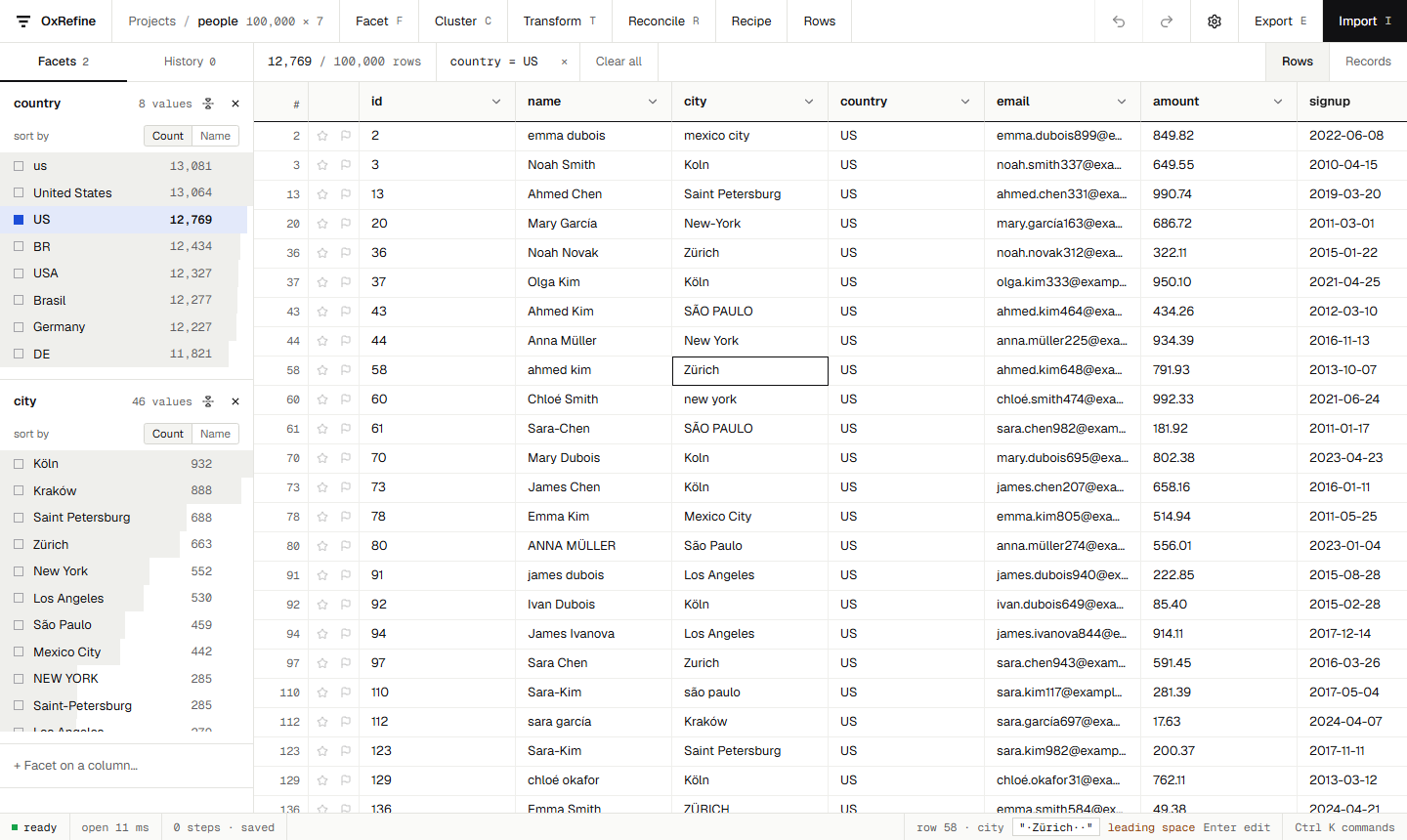
For numbers and dates, use Numeric facet or Timeline facet: drag the range to filter. Text filter finds rows by part of their text.
3. Fix values
- Edit a value everywhere at once: in a text facet, hover a choice and click the pencil. Every row with that value changes.
- Common fixes: use Edit cells → Common transforms, for example to trim whitespace, collapse spaces, change case or convert to numbers or dates.
- Anything else: use Edit cells → Transform… with a GREL expression, such as
value.replace("-", " ").toTitlecase(). The preview shows the result for the first rows before you apply it.
4. Merge near-duplicates
Edit cells → Cluster and edit… groups spellings that probably mean the same thing, such as São Paulo, Sao Paulo and SÃO PAULO. Tick the clusters to merge, adjust the new value, and choose Merge. Try other methods and keying functions to find more. See Clustering.
5. Check, undo, repeat
Every step is listed in the History tab. Click an earlier step to go back to it; your later steps stay available until you make a new change. Facets update as you go, so you can see what is left to fix.
6. Export, or save the recipe
- Export writes the cleaned rows as CSV, TSV, Excel, OpenDocument, HTML, SQL or your own template. Only the rows that pass your facets are exported.
- Recipe in the top bar shows every step beside its recipe; tick the steps and save the JSON. It is the same JSON as OpenRefine's Extract. Apply it to next month's file with Recipe → Apply a recipe…, or from the command line with
ox apply.